
Jellyfin gives you a movie and TV library you own — the hard part is getting it onto the TV in a way the whole household will actually use. This guide takes you from a running Jellyfin server to watching it on Android TV, Google TV, Android phones and tablets, with a profile for everyone in your home and no typing on the remote.
What you need
- A Jellyfin server you already run — on a PC, a Mac, a NAS or in Docker — with your movies and series added as libraries.
- An HTTPS address for it with a real certificate. A
http://192.168…address only works inside your home and is refused by the app. - An Android TV or Google TV device, or an Android phone or tablet on Android 7.0 or later, and about fifteen minutes.
Connect Jellyfin to Android TV, step by step
- Give your Jellyfin server an HTTPS addressMedia Center connects only over
https://with a real certificate, at home and away. Put Jellyfin behind a reverse proxy such as Caddy or nginx and note the address, for examplehttps://media.example.com. Our Jellyfin HTTPS guide walks through it. - Create a Media Center admin accountOpen themediacenter.net/admin/register, enter your name and email, and type the one-time code that arrives in your inbox. There is no password to create.
- Add Jellyfin as a sourceIn the dashboard choose Sources, then Add a source, then Jellyfin. Enter the HTTPS address, then sign in with any Jellyfin account that can see the libraries you want to share. The password is used once, from your own browser, and is never stored.
- Choose what Jellyfin servesMedia Center lists only the libraries your server actually answered for. Tick movies, series, or both, and save.
- Invite your householdUnder Households, choose Invite a household user and enter each person's email. They get an invitation with a link to the app.
- Install Media Center on Android TV from Google PlayOn your Android TV or Google TV, open the Google Play Store, search for Media Center, and install it — or open our Android page on your phone and send it to the TV from Google Play. On a phone or tablet, the same listing installs the phone and tablet layout.
- Sign in on the TV with a QR codeThe TV's sign-in screen shows a QR code. Open your phone's camera, scan it, and sign in with the email you were invited with. The TV signs itself in. You can also sign in with email and password, or ask for a one-time code by email.
Jellyfin on Google TV and the Google TV Streamer
Google TV is Google's home screen on top of Android TV, so a Jellyfin app for Android TV is a Jellyfin app for Google TV. That covers the Google TV Streamer, Chromecast with Google TV, and TVs from Sony, TCL, Hisense and others that run Google TV. Open the Google Play Store on the device, search for the app, and install it, or install it from Google Play on your phone and choose the TV as the device.
The Jellyfin apps people use on Google TV are the official Jellyfin app, Wholphin, Moonfin and Media Center; we compare them in the best Jellyfin app for Android TV and Wholphin vs Jellyfin vs Moonfin. Media Center is the one built for a household: everyone signs in by scanning a QR code, so nobody types a server address or password with the Google TV remote, and Plex plays in the same app.
What it looks like on Android TV
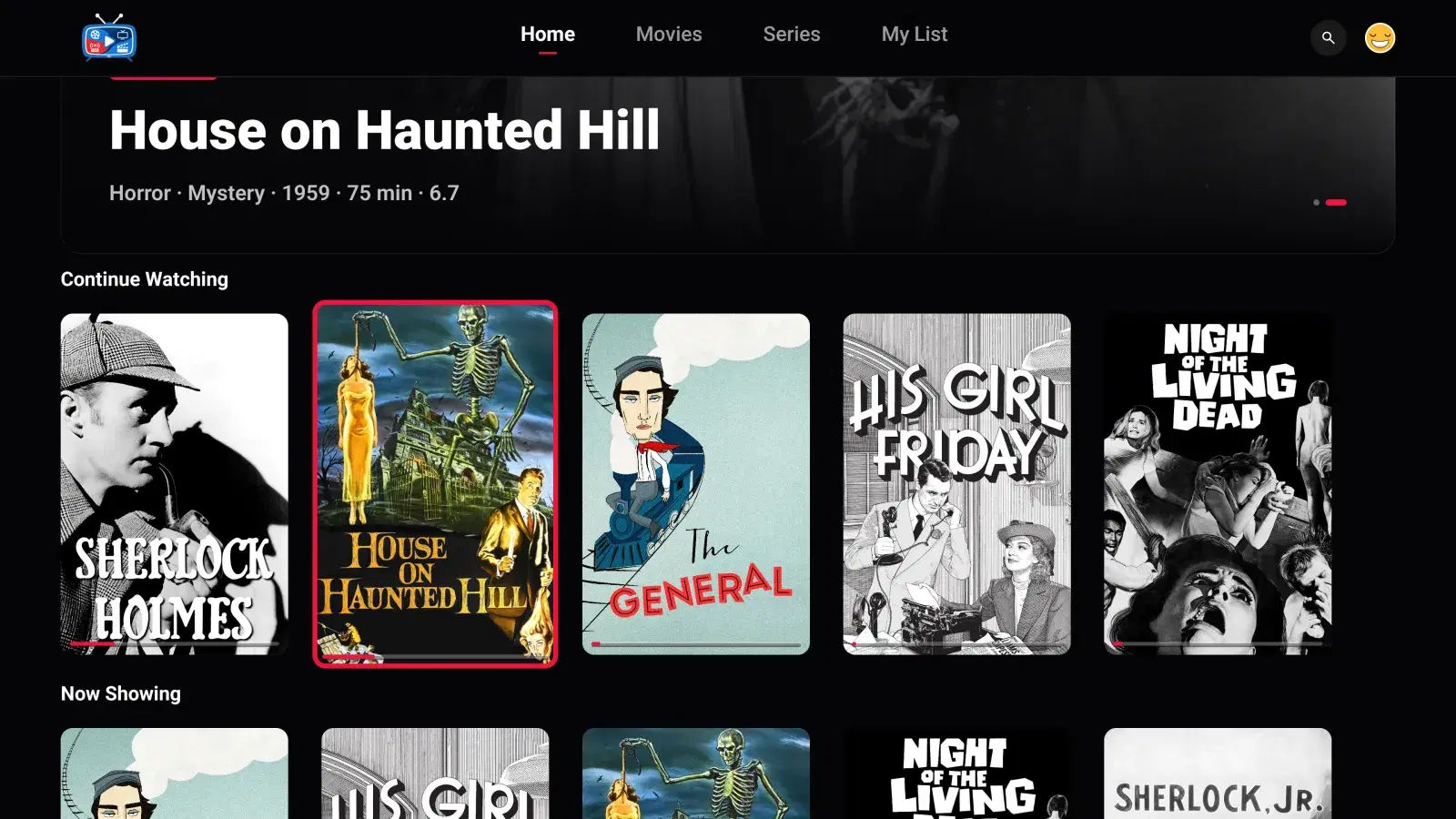
After signing in, each person picks their profile, and the home screen opens on their own Continue Watching. Everything is reachable with the remote's arrows: rows of artwork, a Movies and a Series tab, My List, and search. Titles open on a detail page with artwork, cast and episodes — add a TMDB API key in the dashboard's Integrations and Media Center matches artwork from The Movie Database too. The player's scrubber shows the time remaining.
Run Plex as well? Connect it as a second source and choose which server serves movies and which serves series — see how to use Plex and Jellyfin together. Kids profiles see only titles with the content ratings you allow: set up a kids profile.

Troubleshooting Jellyfin on Android TV
- “Unable to connect to server” or a connection that times out. Check that the source address starts with
https://and opens in a browser away from your home Wi‑Fi — try it on your phone over cellular. If it only works at home, your reverse proxy or port forwarding is not reachable from the internet. - Which server address to use. The public HTTPS address of your reverse proxy, such as
https://media.example.com— nothttp://192.168…:8096. Household members never type it: the administrator enters it once in the dashboard. - A library is missing. The Jellyfin account you connected must be allowed to see it. Grant access in Jellyfin's Dashboard → Users, then reconnect the source.
- Someone cannot sign in on the TV. They need an invitation from you first — there is no sign-up inside the app. Add them under Households.