
Jellyfin is a great way to own your movie and TV library — but getting it onto the big screen is where most people get stuck. This guide takes you from a running Jellyfin server to watching it on Apple TV, iPhone and iPad, with a profile for everyone in your home.
What you need
- A Jellyfin server you already run — on a PC, a Mac, a NAS or in Docker — with your movies and series added as libraries.
- An HTTPS address for it with a real certificate. A
http://192.168…address only works inside your home and is refused by Apple devices. - Apple TV (tvOS), iPhone or iPad, and about fifteen minutes.
Connect Jellyfin to Apple TV, step by step
- Give your Jellyfin server an HTTPS addressApple TV, iPhone and iPad apps need a secure
https://address with a real certificate. Put Jellyfin behind a reverse proxy such as Caddy or nginx and note the address, for examplehttps://media.example.com. Our Jellyfin HTTPS guide walks through it. - Create a Media Center admin accountOpen themediacenter.net/admin/register, enter your name and email, and type the one-time code that arrives in your inbox. There is no password to create.
- Add Jellyfin as a sourceIn the dashboard choose Sources, then Add a source, then Jellyfin. Enter the HTTPS address, then sign in with any Jellyfin account that can see the libraries you want to share. The password is used once, from your own browser, and is never stored.
- Choose what Jellyfin servesMedia Center lists only the libraries your server actually answered for. Tick movies, series, or both, and save.
- Invite your householdUnder Households, choose Invite a household user and enter each person's email. They get an invitation and can sign in on any of their devices.
- Install Media Center on Apple TV and sign inDownload Media Center from the App Store on Apple TV. The sign-in screen shows a QR code: scan it with your phone, sign in on the page that opens, and Apple TV signs itself in. You can also ask for a one-time code by email.
What the experience looks like
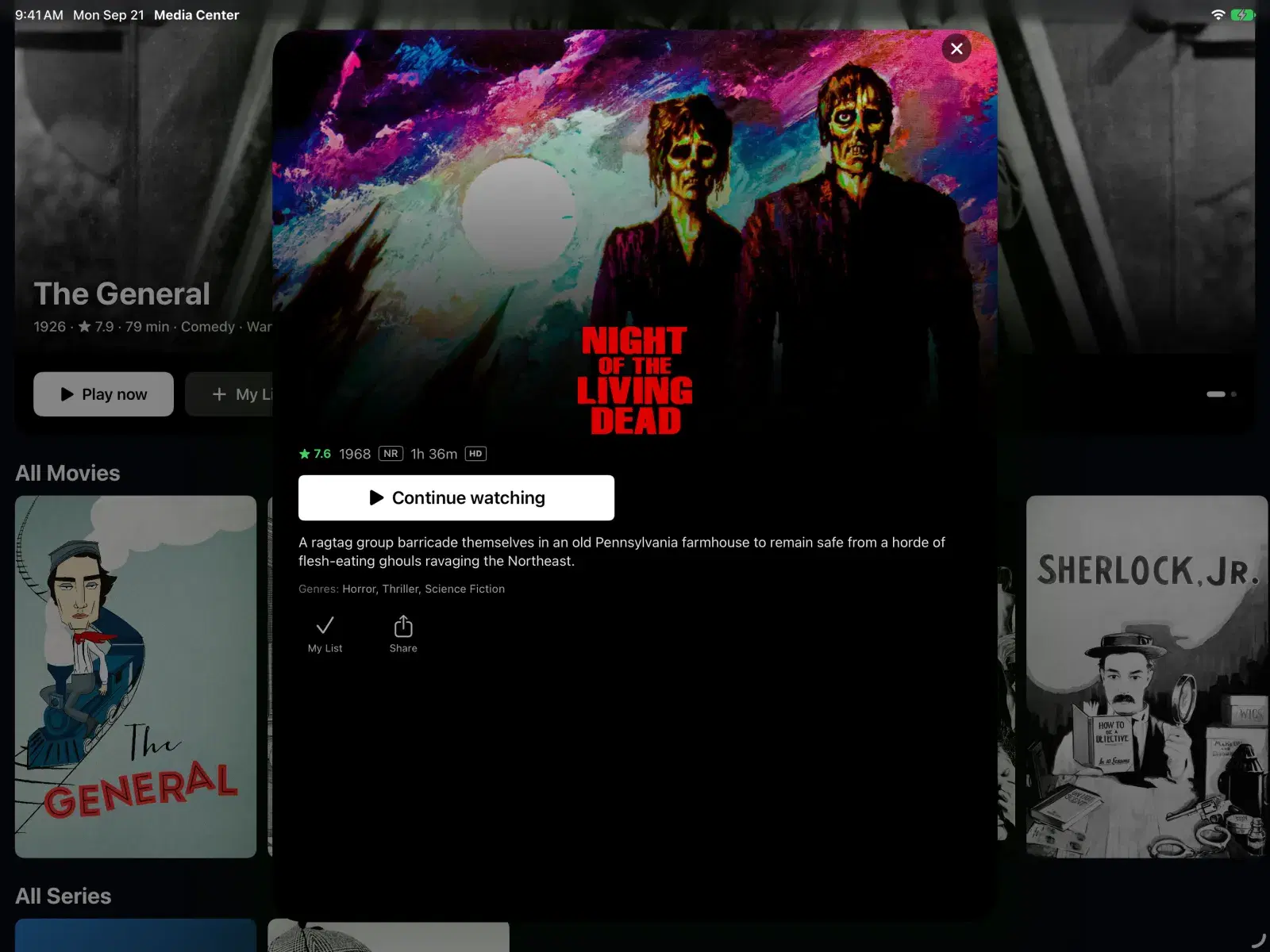
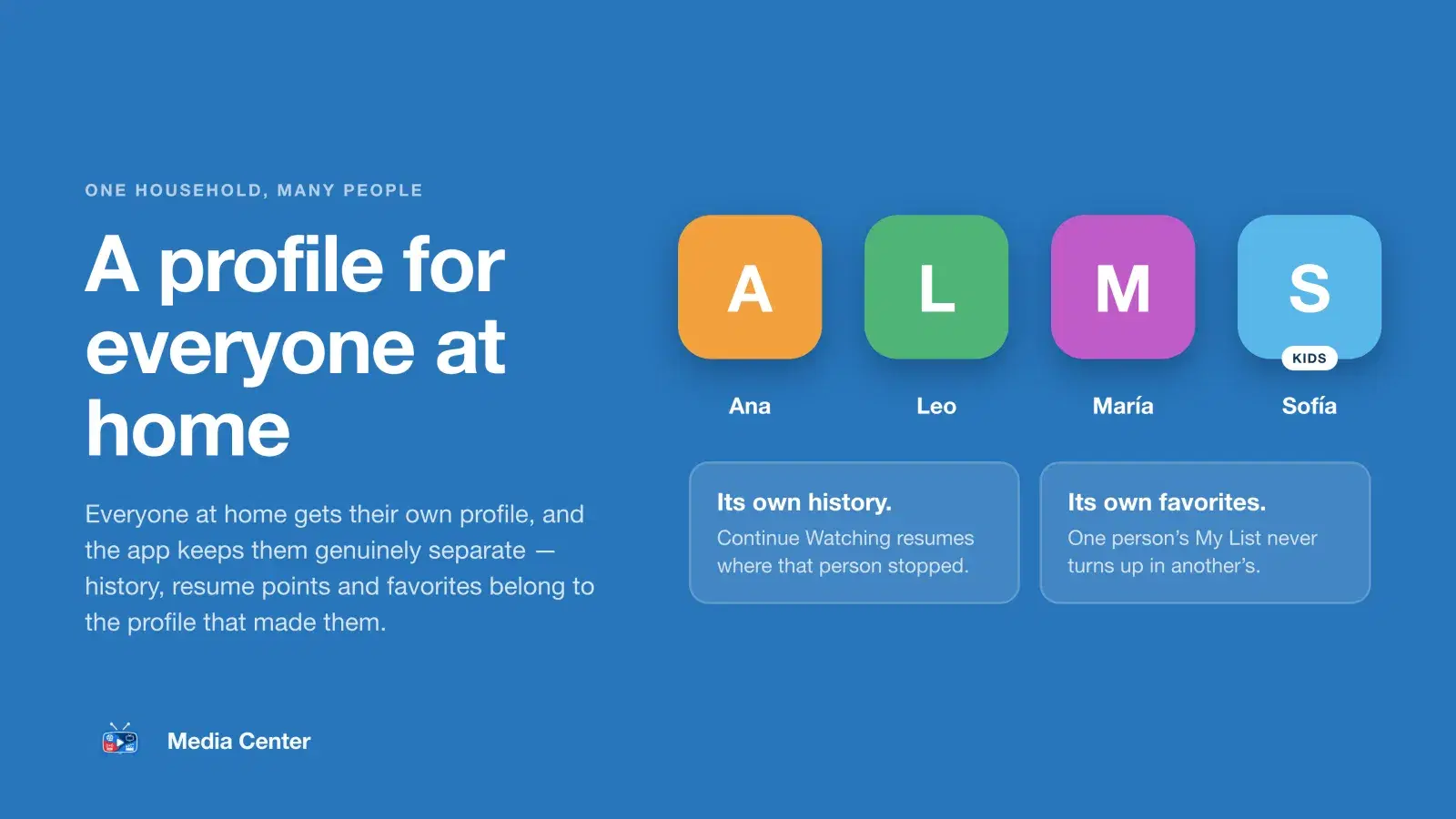
Once you are signed in, each person picks their profile, and the home screen shows their own Continue Watching. Titles open on a full detail page with artwork, cast and episodes — add a TMDB API key in the dashboard's Integrations and Media Center matches artwork from The Movie Database too. The scrubber shows the time remaining, Skip Intro appears on titles where intro markers are available, and on iPhone and iPad you can keep watching in Picture in Picture.
Kids profiles see only titles with the content ratings you allow. See how to set up a kids profile.
Troubleshooting
- Nothing plays. Check the source address starts with
https://and opens in a browser away from your home Wi‑Fi (try it on your phone over cellular). - A library is missing. The Jellyfin account you connected must be allowed to see it. Grant access in Jellyfin's Dashboard → Users, then reconnect the source.
- Someone cannot sign in on Apple TV. They need an invitation from you first — there is no sign-up inside the app. Add them under Households.