Sharing a Plex or Jellyfin server with parents, siblings or friends usually means handing out logins and walking everyone through setup over the phone. Here is a simpler way: connect the server once, invite people by email, and let them sign in on Apple TV or Android TV with a QR code.
Sharing Jellyfin with friends outside your home? Compare Tailscale, a public HTTPS address and email invitations in how to share Jellyfin with friends and family.
Share your server in five steps
- Make your server reachable over HTTPSFamily members watch from their own homes and phones, so the server needs a secure
https://address that works from anywhere — for Plex, turn on Remote Access (Sign in with Plex then finds its addresses for you), or put Jellyfin behind a reverse proxy. - Connect the server to Media CenterCreate an admin account at themediacenter.net/admin/register and add your Plex or Jellyfin server under Sources.
- Invite each household by emailUnder Households, choose Invite a household user and enter their email address. They receive an invitation with a link to the app.
- They install Media Center and sign inOn Apple TV and Android TV, the sign-in screen shows a QR code: they scan it with their phone and sign in there, with no typing on the remote. On iPhone, iPad and Android phones and tablets they sign in with their email.
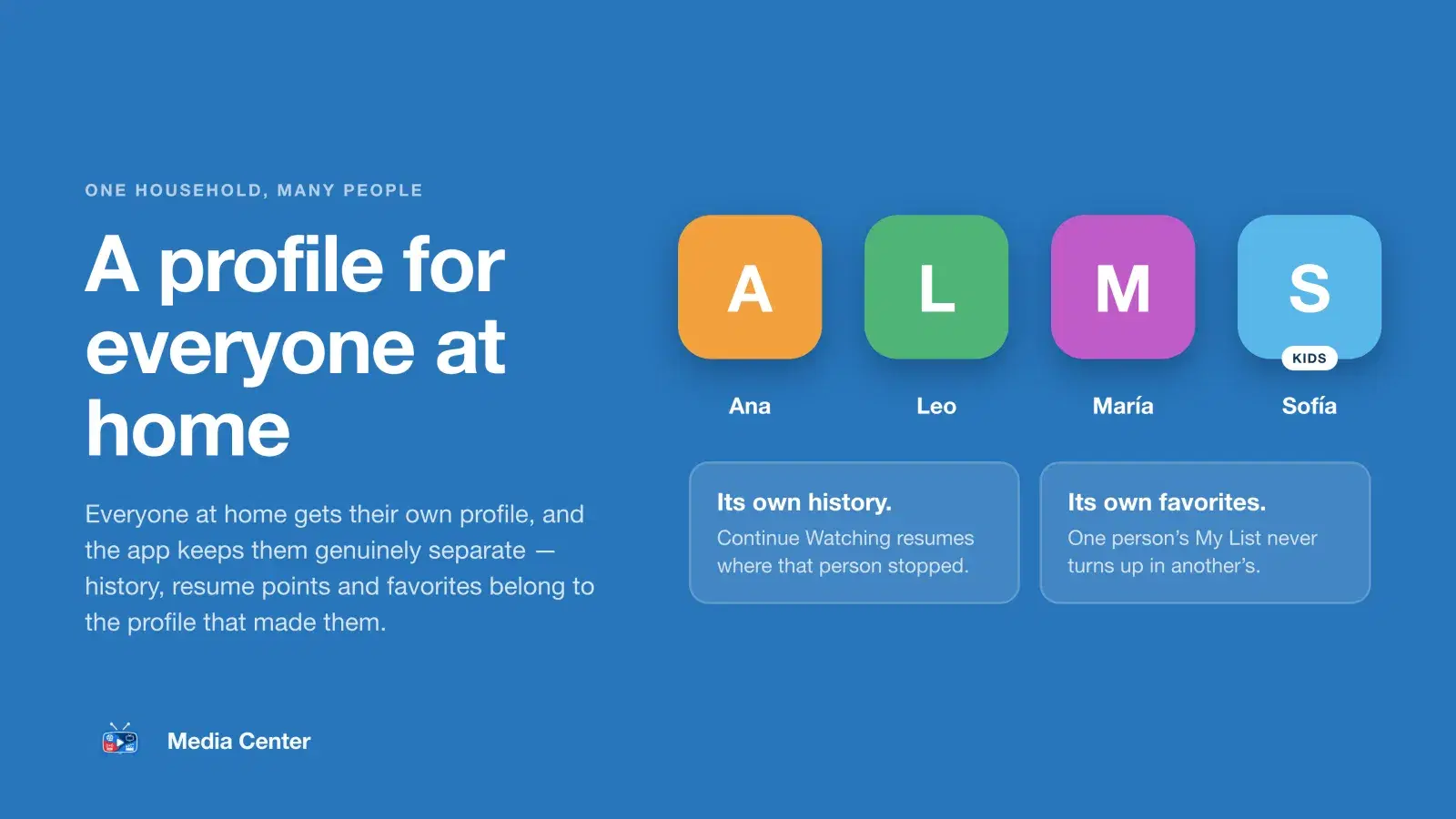
- Everyone makes their own profilesThe first time a household signs in, the app walks them through creating a profile. Each profile keeps its own Continue Watching, and kids profiles follow your kids rules.
What you control as the administrator
- Which servers your households watch, and which server serves movies or series.
- Who has access — invite and remove households at any time.
- What kids profiles can see. See setting up a kids profile.