
Jellyfin makes sharing generous: unlimited users, no fee for streaming outside your home, and no account with anyone but you. The hard part is getting your friends connected — and keeping them connected without becoming their tech support. There are three good ways to do it. Here is how each one works and who it suits.
The three ways to share Jellyfin, at a glance
| Approach | What friends install | Open ports? | Works on their TV? | Best for |
|---|---|---|---|---|
| 1. Tailscale machine sharing | Tailscale and a Jellyfin app on every device | None | Yes, if their TV runs Tailscale | One or two technical friends |
| 2. Public HTTPS address | A Jellyfin app | 443 (or Tailscale Funnel) | Yes | Several friends who can type a server address and password |
| 3. Public HTTPS + Media Center | Media Center only | 443 (or Tailscale Funnel) | Yes, with QR sign-in | Family and friends who just want to press play |
Before you share: set up a user for each friend
Whichever way you choose, give everyone their own Jellyfin user rather than one shared login. In Jellyfin, open Dashboard → Users and add a user. On that user's settings you can:
- Limit libraries — tick only the movie and series libraries they should see.
- Cap their Internet streaming bitrate limit, so one friend cannot use all of your upload speed, and make sure Allow remote connections to this server is on for them.
- Turn off transcoding for that user if your server's processor cannot keep up with several streams at once.
- Set a maximum parental rating if children will use the account.
Then check your upload speed. A friend watching a large file uses roughly that file's bitrate. Add up the streams you expect at once; if the total is close to your upload speed, lower the per-user cap.
Option 1: Share Jellyfin with friends using Tailscale
Tailscale builds a private network between your devices. With machine sharing, you share only the Jellyfin machine with a friend's Tailscale account. Nothing is open to the internet, and your friend cannot see anything else on your network.
- Install Tailscale on the Jellyfin machineInstall Tailscale on the computer or NAS that runs Jellyfin and sign in. It gets a private address on your tailnet.
- Share the machine with your friendIn the Tailscale admin console, open the Jellyfin machine, choose Share, and send the invite link. Your friend accepts it with their own Tailscale account; they see that one machine and nothing else on your network.
- Your friend installs Tailscale on every device they watch onPhones, computers, and TVs too. Tailscale has apps for Apple TV (tvOS 17 or later) and Android TV, and each device must be connected to Tailscale while they watch.
- Create them a Jellyfin userIn Jellyfin, open Dashboard → Users, add a user for your friend, and tick only the libraries they should see.
Your friend then adds your server in their Jellyfin app using its Tailscale address, such as http://100.x.y.z:8096, or a trusted HTTPS name like https://jellyfin.your-tailnet.ts.net if you enable tailscale serve.
The catch: every device has to run Tailscale and be connected while they watch. That is easy on a laptop and a hassle on a parent's TV, and it is the reason “Jellyfin won't connect” calls tend to start here.
Option 2: Give Jellyfin a public HTTPS address
A reverse proxy such as Caddy gives Jellyfin an address like https://media.example.com with a real certificate. Friends type it into any Jellyfin app, anywhere, with nothing else to install. Our Jellyfin HTTPS and remote access guide walks through it, including Tailscale Funnel if your provider will not let you open ports.
The catch: each friend still has to enter your server address and their Jellyfin password on every device, on a TV with the remote. Use strong passwords, keep Jellyfin updated, and forward only the proxy's port 443 — never Jellyfin's own port 8096.
Option 3: Share it like a streaming service, with Media Center
Options 1 and 2 make the server reachable. They do nothing about the part your friends actually see: installing the right app, typing an address and a password with a TV remote, and asking you what went wrong. Media Center handles that part.
- You connect Jellyfin once, in a web dashboard, using the HTTPS address from option 2. Your Jellyfin password is used once from your own browser and is never stored.
- You invite friends by email. They get an invitation with a link to the app. No Jellyfin account and no server address for them to manage.
- They sign in on the TV with a QR code. On Apple TV and Android TV, they scan the code on screen with their phone. On iPhone, iPad and Android phones they sign in with their email.
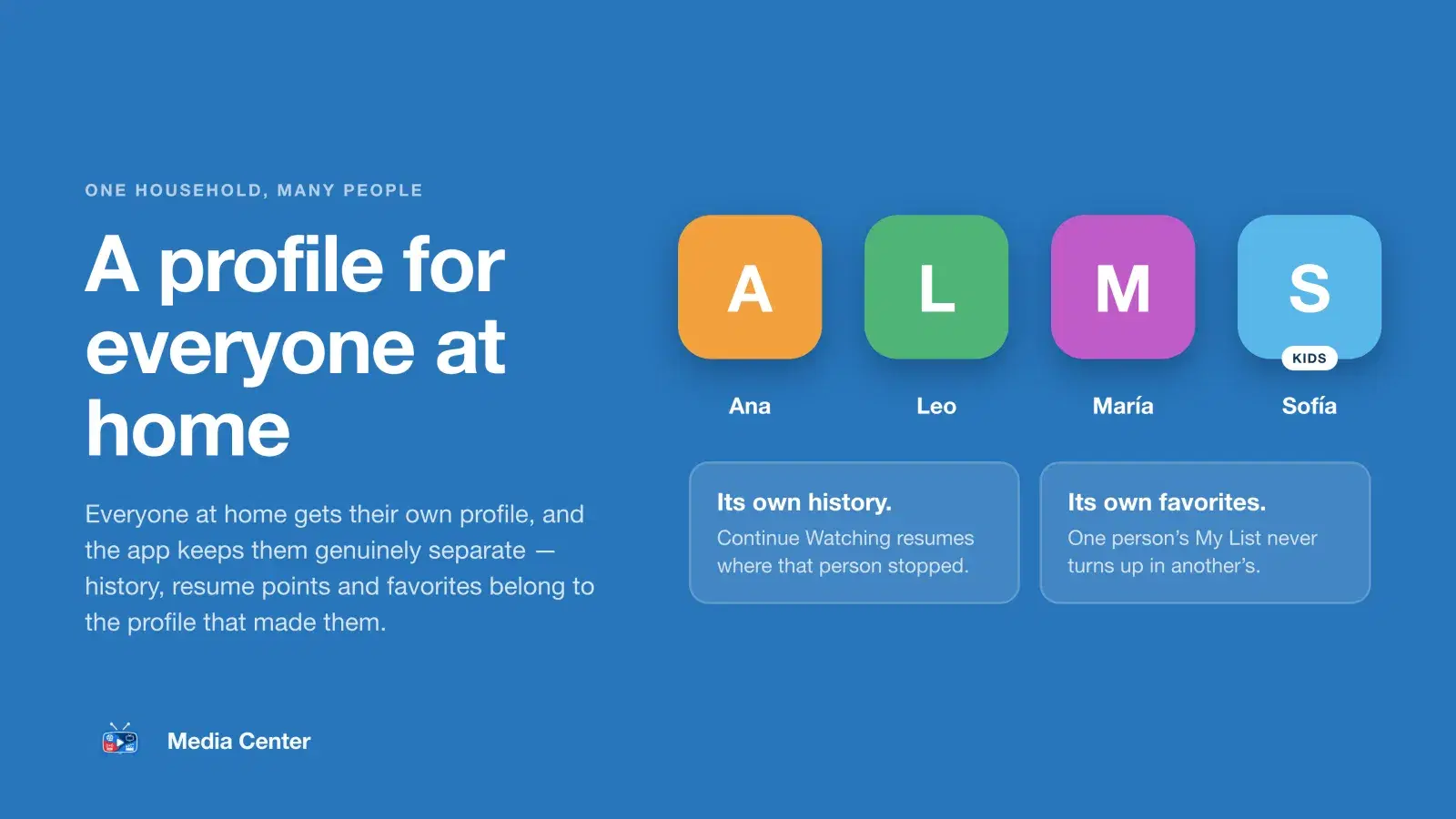
- Everyone gets their own profiles. Each household can have several profiles, each with its own Continue Watching and My List, and kids profiles that show only what you approve.
- You stay in control. Remove a household from the dashboard and their access ends immediately.
- Plex too. If part of your library lives on Plex, connect both servers and friends see one app.
Video still streams straight from your Jellyfin server to their device, so it never passes through Media Center's servers. The full walk-through is in sharing Plex or Jellyfin with your family.
Set up Media Center for your household →The Free plan covers one household. Your household then installs the app.
Which way should you share Jellyfin?
- One friend who already uses Tailscale: option 1. Nothing is exposed, and it takes five minutes.
- A few friends who like to tinker: option 2, with a separate Jellyfin user and a bitrate cap for each.
- Parents, siblings, and anyone who will call you when it breaks: option 3. You do the setup once, and they get an app that behaves like the streaming services they already use.